ViewSonic Z50 Guide de l'utilisateur
Naviguer en ligne ou télécharger Guide de l'utilisateur pour Téléviseurs et moniteurs ViewSonic Z50. ViewSonic Z50 User guide Manuel d'utilisatio
- Page / 18
- Table des matières
- DEPANNAGE
- MARQUE LIVRES

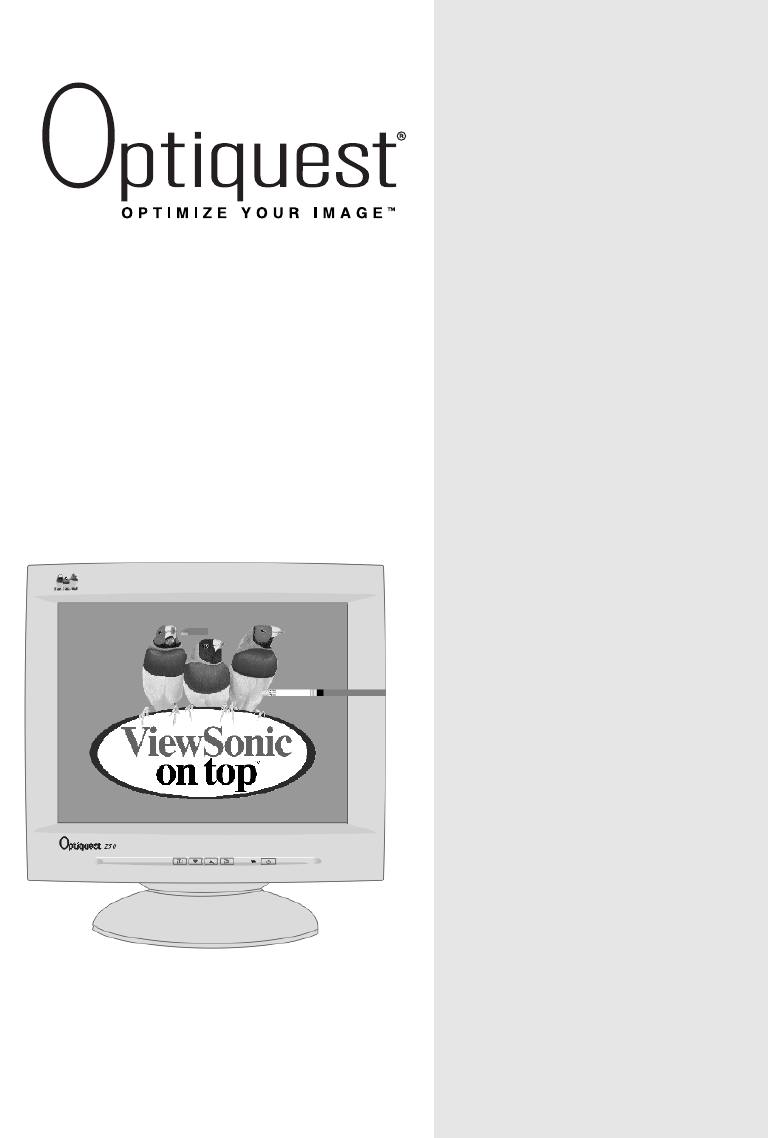
- Z50 Color Monitor 1
- Contents 2
- 2Optiquest Z50 3
- Getting Started 4
- Quick Installation 5
- Using the Monitor 6
- Adjusting the Screen Image 7
- Optiquest Z50 7 8
- 8Optiquest Z50 9
- Optiquest Z50 9 10
- Other Information 11
- Troubleshooting 12
- Customer Support 13
- Cleaning the Monitor 14
- Limited Warranty 15
- Appendix 16
- FCC Information 17
- 381 Brea Canyon Road 18
- Walnut, CA 91789 18
- Tel (909) 869-7976 18
- Tel (800) 888-8583 18
Résumé du contenu
User GuideGuide de l’utilisateur(International Spanish)(Brazilian Portuguese)With Plug & Play✘15" (13.8" Viewable Diagonal)Z50 Color Mon
ENGLISHOptiquest Z50 9ViewMeter®displays information about the video signalcoming from your computer’s graphics card. This includes:the refresh rate (
ENGLISH10 Optiquest Z50Other InformationPreset Timing ModesRecommended Timing Modefor this monitor is: VESA®800 x 600@ 75 Hz1Macintosh models prior to
ENGLISHOptiquest Z50 11TroubleshootingNo power• Make sure power button (or switch) is ON.• Make sure A/C power cord is securely connected to the back
ENGLISH12 Optiquest Z50Customer SupportFor the most expedient answer to your question, do the following:1. Check Troubleshooting (on the previous page
ENGLISHOptiquest Z50 13Cleaning the Monitor• MAKE SURE THE MONITOR IS TURNED OFF.• NEVER SPRAY OR POUR ANY LIQUID DIRECTLY ONTO THESCREEN OR CASE.To c
ENGLISH14 Optiquest Z50Limited WarrantyOPTIQUEST MONITORSWhat the warranty covers:ViewSonic® warrants its products to be free from defects in material
ENGLISHOptiquest Z50 15AppendixPower Cord Safety GuidelinesCAUTION: Use a power cable that is properly grounded. Always use the AC cords listed for ea
ENGLISH16 Optiquest Z50FCC InformationThis equipment has been tested and found to comply with the limits for a Class B digital device, pursuant topart
381 Brea Canyon RoadWalnut, CA 91789Tel (909) 869-7976Tel (800) 888-85839/2000
ContentsENGLISHOptiquest Z50 1Electronic Warranty Registration...2For Your Records ...
ENGLISH2Optiquest Z50Copyright © ViewSonic Corporation, 2000. All right reserved.Macintosh and Power Macintosh are registered trademarks of Apple Comp
ENGLISHOptiquest Z50 3Getting StartedCongratulations on your purchase of a Optiquest Z50 color monitor. Important!Save the original box and all packin
ENGLISH4Optiquest Z50Quick Installation1 Connect video cableMake sure both the monitor and computerare powered OFF.Connect the video cable to the comp
ENGLISHOptiquest Z50 5Using the MonitorSetting the Timing ModeSetting the timing mode is important for maximizing the quality of thescreen image and m
ENGLISH6Optiquest Z50Adjusting the Screen ImageBeginning with the Main Menu shown below, use the buttons on the frontcontrol panel to adjust the OnVie
ENGLISHOptiquest Z50 7To adjust the screen image:1To display the Main Menu (parts 1 and 2 shown below), press button [1].2To select a control you want
ENGLISH8Optiquest Z50Main Menu ControlsThe menu items shown below can be adjusted by using the arrow buttons (▲▼)on the front of your monitor. Control
Produits connexes et manuels pour Téléviseurs et moniteurs ViewSonic Z50
 (1 pages)
 (3 pages)
 (26 pages)
 (2 pages)
 (22 pages)
© 2020, manymanuals.fr. Tous droits réservés | 0.025 s |
 Manymanuals.com
 Manymanuals.de
 Manymanuals.fr
 Manymanuals.it
 Manymanuals.pl
 Manymanuals.cz
 Manymanuals.es
 Manymanuals-pt.com
Commentaires sur ces manuels